Built with AI · Training · 2026
Training Control Center
I built Training Control Center to manage the moving parts of a live workshop from one laptop. It keeps the trainer, projector and participants in sync, with activities and session records in the same system.
- Role
- Product owner and designer
- Status
- In use in client workshops
- Built with
- Claude
Technical notes for IT teams
A small server on the trainer's laptop, with no third-party runtime packages, sends live updates to each browser.
A session from each side
The room sets the requirements
A live workshop involves more than presenting slides. I need to ask questions, run exercises, see how people are responding and keep a useful record of the session. Each additional tool creates another thing to set up and another place for information to end up.
That setup often happens in a client meeting room, sometimes over unreliable Wi-Fi and shortly before the workshop starts. I wanted a system I could prepare in advance and run from my own laptop.
What it needed to do
The core workshop had to work without an internet connection. The trainer's laptop would serve the session over a shared local network, and participants would join through their browsers without installing an app.
The trainer needed a private control view, while the projector and participant screens showed only what was relevant to them. Personal notes, feedback and AI questions also needed clear handling rules, with participants told what the session would record.
How the room connects
One session across three views
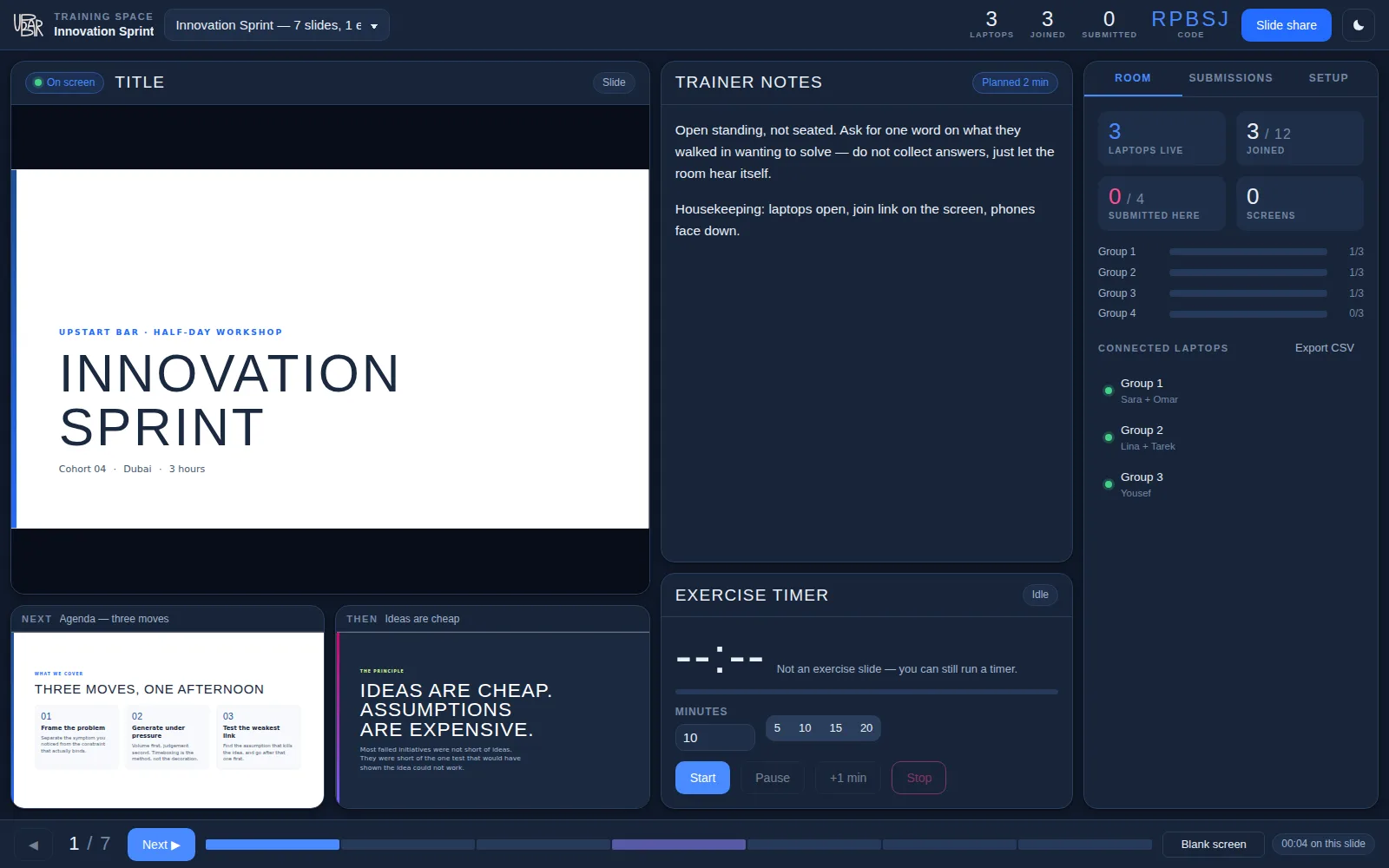
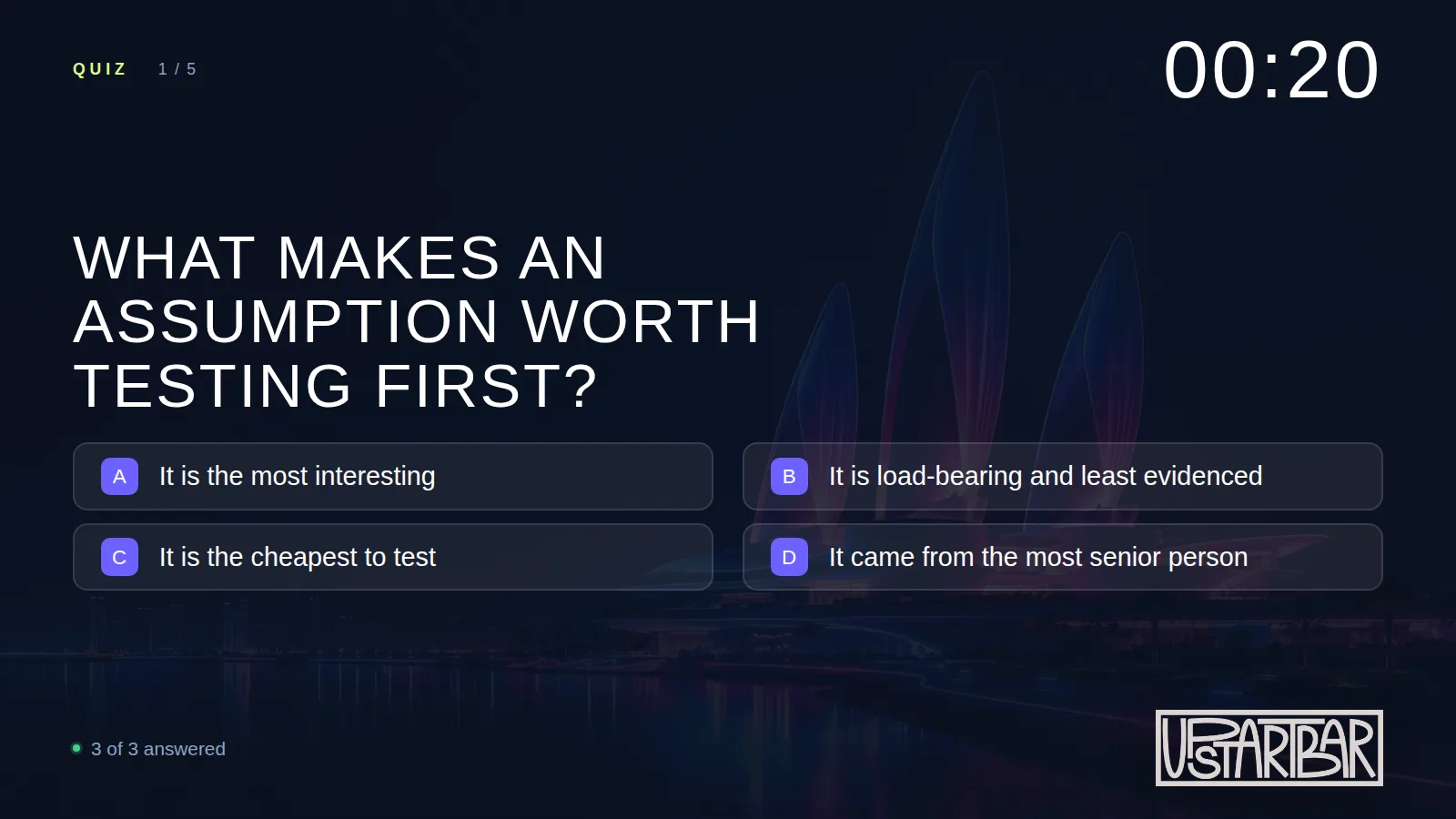
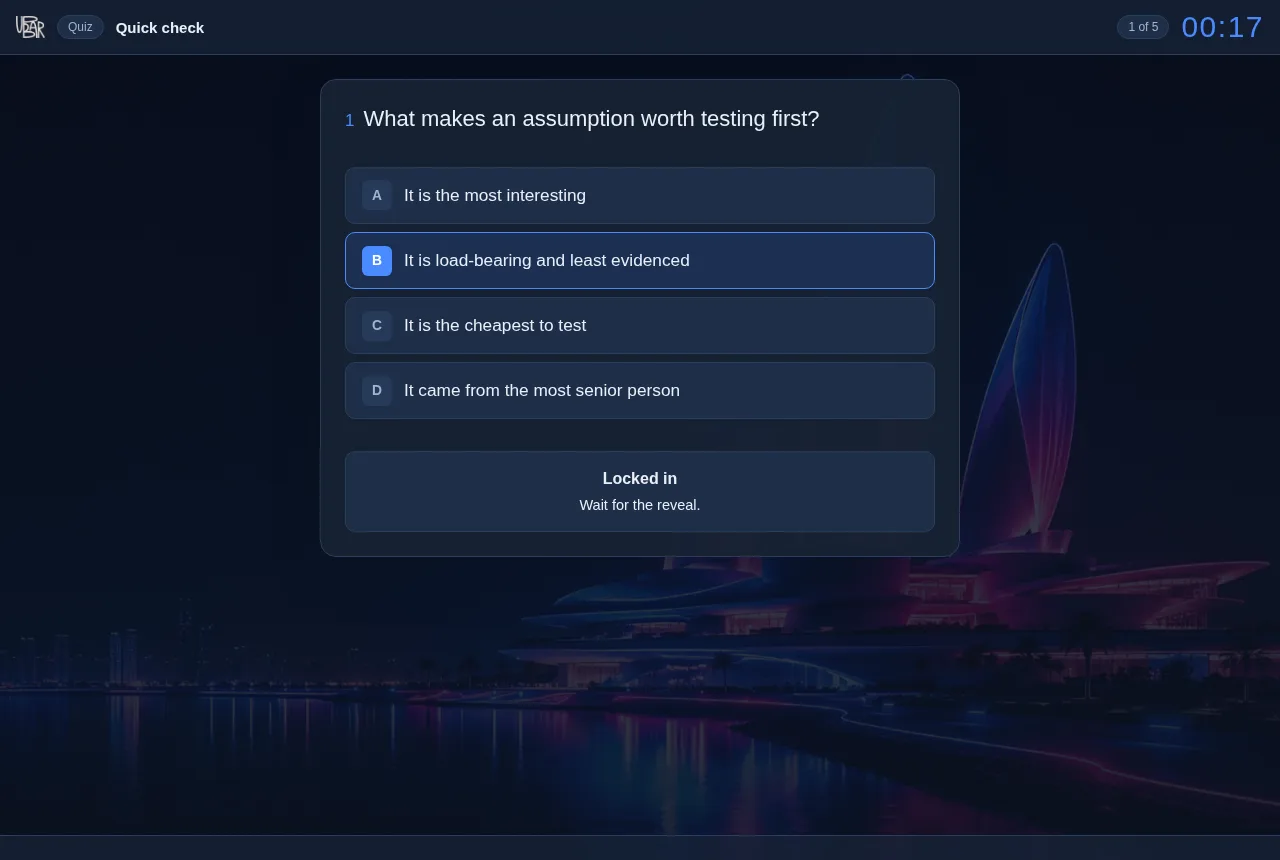
The platform runs on the trainer's laptop and serves three views over the local network. The trainer uses a password-protected console. The projector shows the presentation and live activities. Participants join a session with a code and use their own workspace.
Run the session
The console brings together the current slide, trainer notes, an exercise timer and the connected participants. It lets me control the session while keeping the projected view clear.
Bring the room into the discussion
Quizzes, polls and feedback forms sit alongside the presentation. Paced quizzes include a countdown and a leaderboard. Activities are authored in Excel, and responses are filed as the session runs.
Keep a usable record
Ending the workshop produces a branded Excel workbook with the session record. Printable handouts carry a confidentiality notice on each page.
Offer AI assistance when it is useful
An optional assistant lets participants ask about the slide on screen. The trainer decides when to enable it. The server supplies the current slide as context, while the interface reminds participants to check AI-generated answers.
The choices behind the build
Keep the core small
I set a requirement that the platform start without installation steps or outside software packages. That keeps the setup manageable for the way I use it in workshops.
Separate AI from the core session
The AI assistant requires an internet connection from the trainer's laptop. If that connection is unavailable, the core workshop can continue over the local network. The assistant is an optional part of the session.
Make data handling a product requirement
I designed the assistant's context to exclude trainer notes and participant names. The join flow explains what is recorded and what is sent to the assistant. Personal notes are intended to remain outside the session record, and anonymous feedback needs to stay anonymous in the stored data as well as on screen.
In use and still developing
The platform is in use in client workshops and is now in its third version. This version adds two-step sign-in and the option to host rooms online, alongside the local setup.
The local version is the basis of this case study. Hosted rooms have different connectivity and data-handling requirements, which need to be explained separately.
More tools from my work
Training Control Center is one of several tools I'm building with AI. The others address document handling, AI discovery and the operations behind a consultancy.